Sometimes, you might need the ability to quickly convert a Quote to an Order without the magic powers of the CPQ package.
Here’s how you can accomplish that using a Screen Flow.
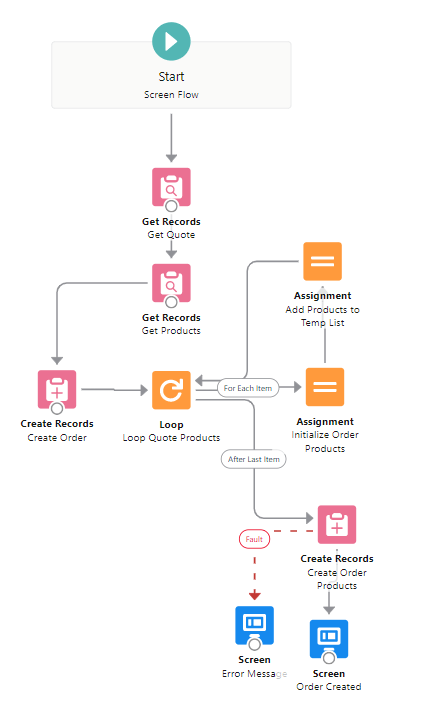
Now, let’s see every element in detail.
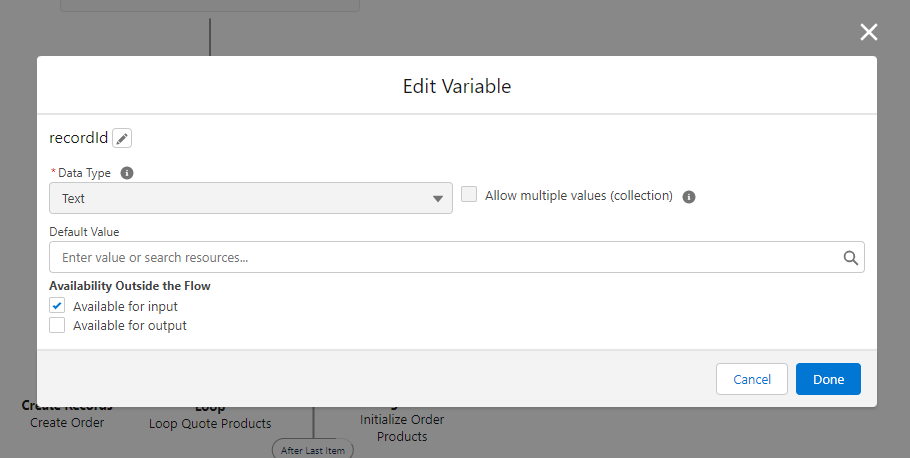
The first thing we need to do, since we are using a Screenflow, is create a recordId variable to store the triggering record’s Id:
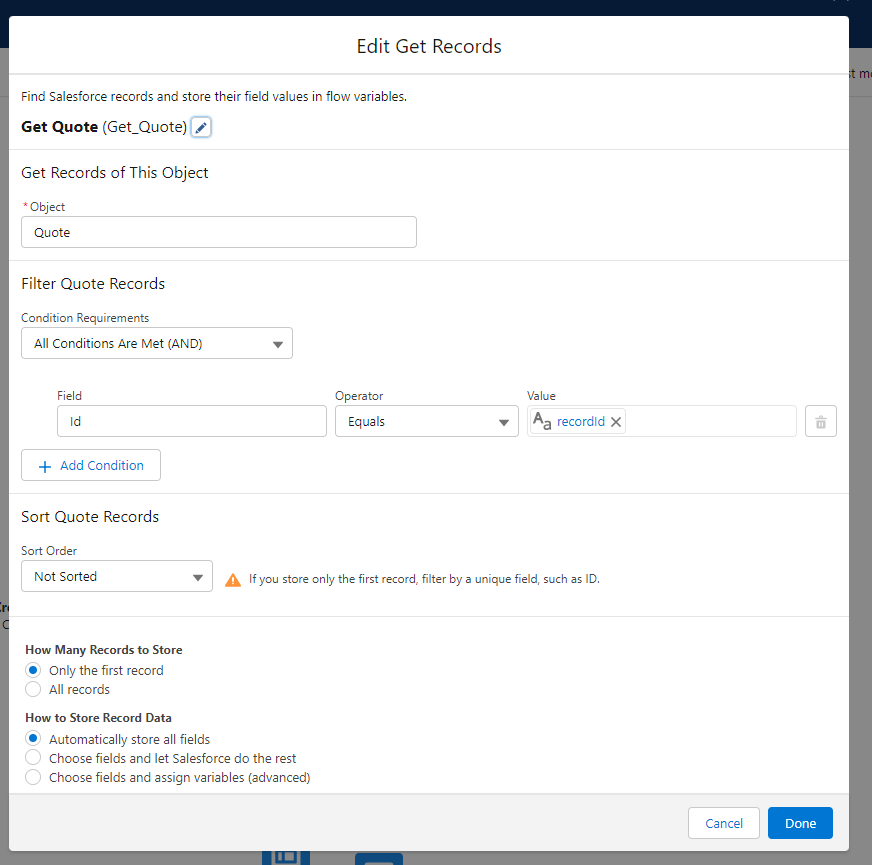
Then, we want to add a Get Records element to get the Quote we need:
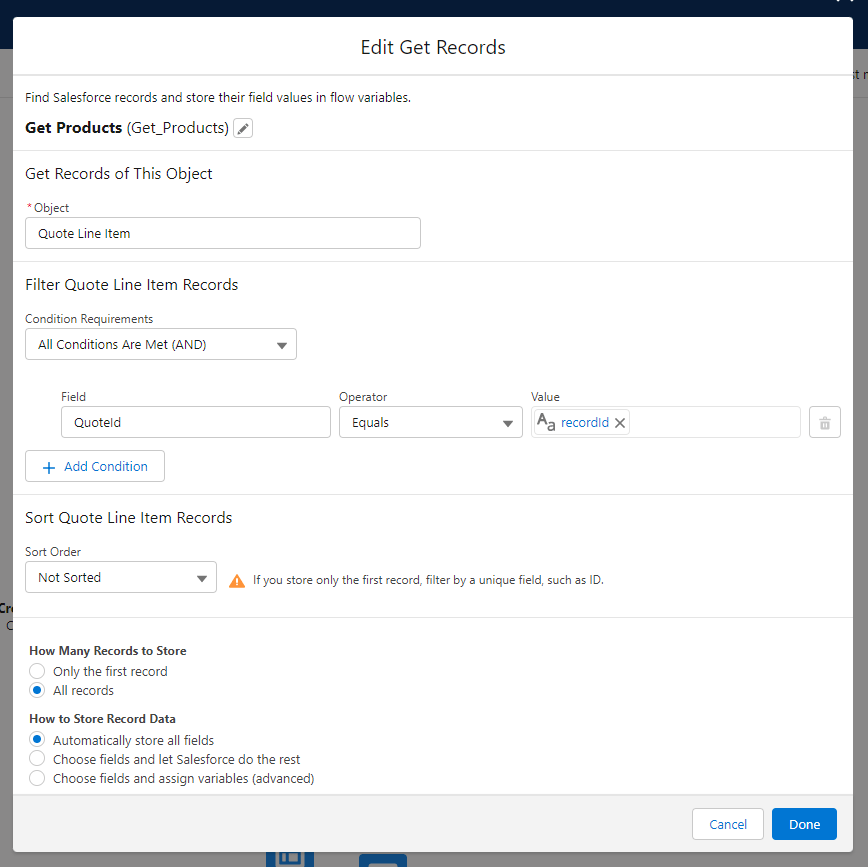
We will also get all the products the quote has by using another Get Records element:
Now, we will need to create our order, so we will use a Create Record element and add all the information from the quote:
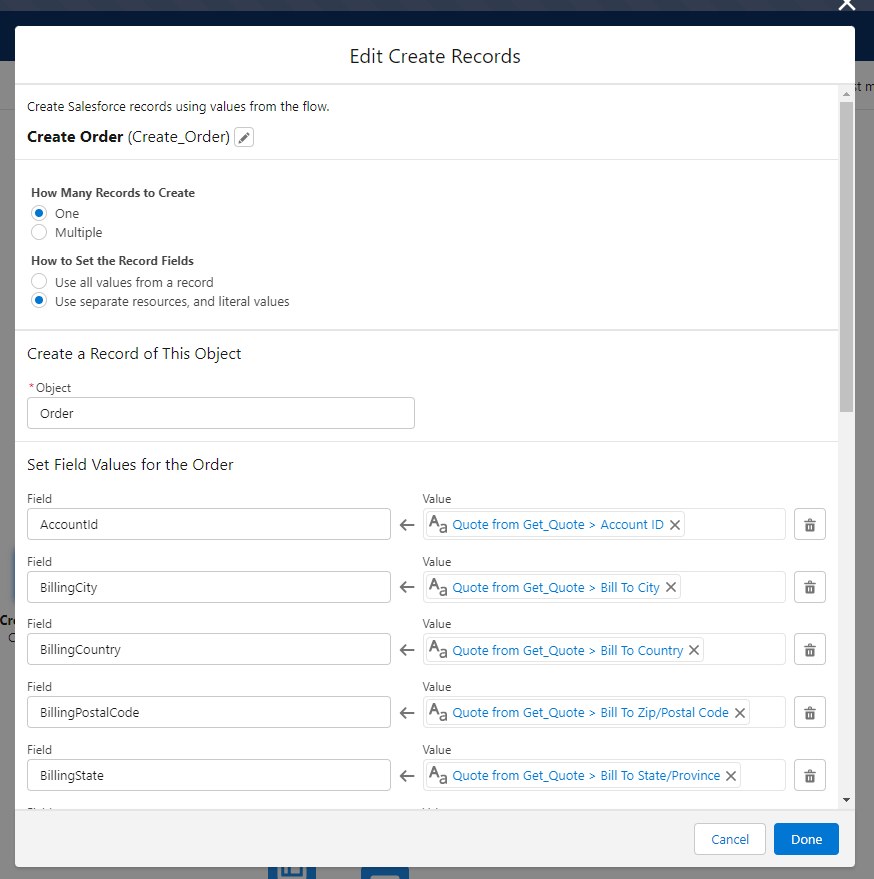
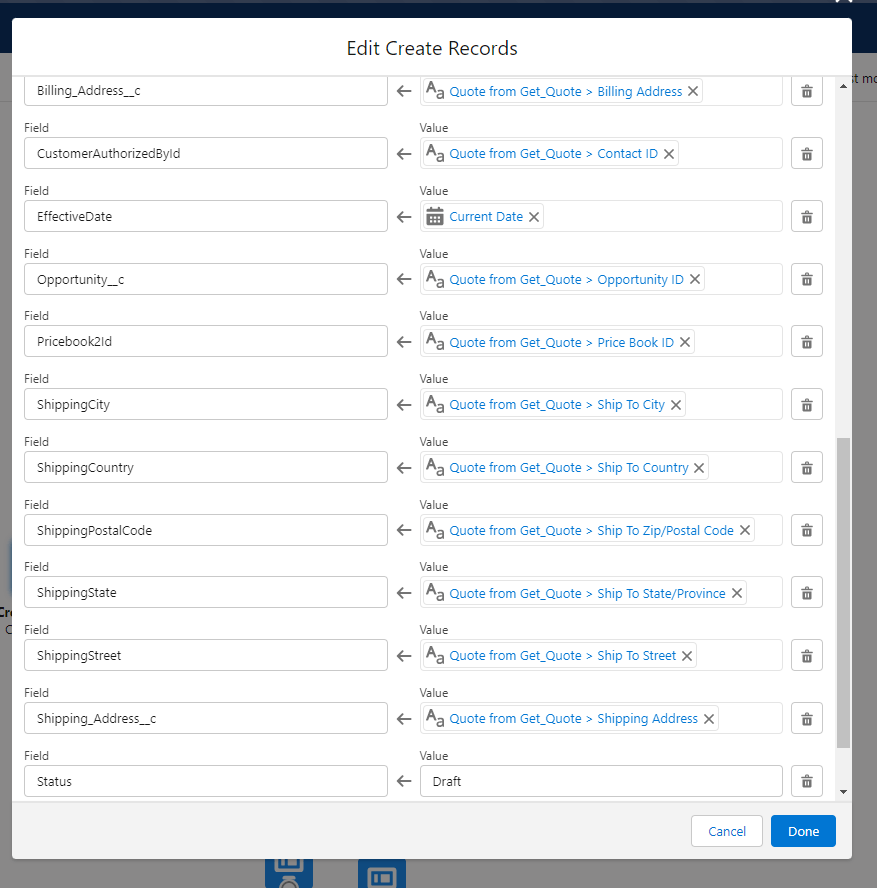
For the Effective Date and Status, you can use whatever information fits your business needs.
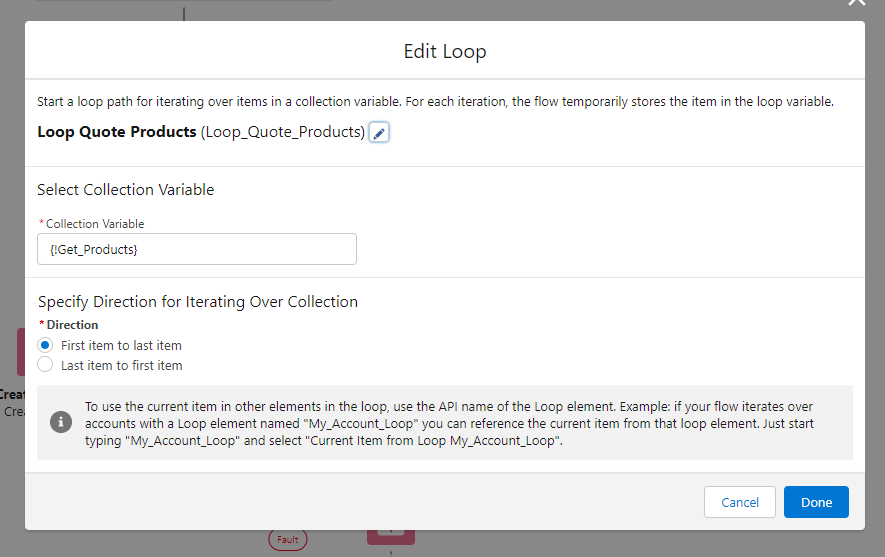
Now, we will need to add every product to our newly created order. For that we will need a loop element, to loop every quote product we got on our Get Records element:
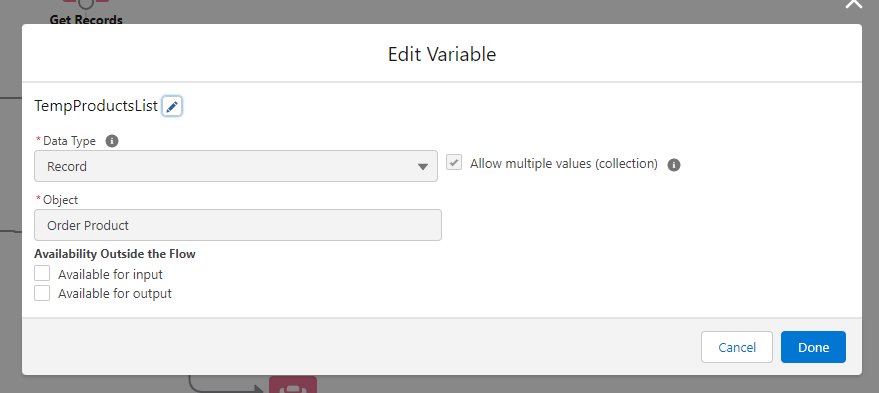
For each product, we will initialize them and add them to a temp list. So we need to create a temp product variable and a temp list:
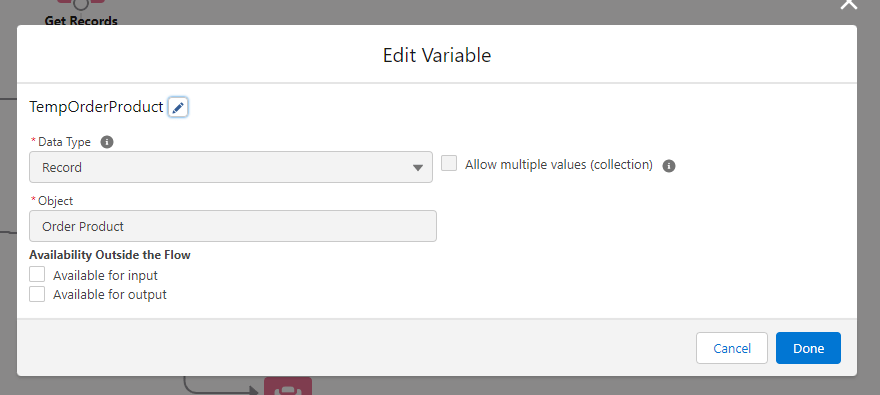
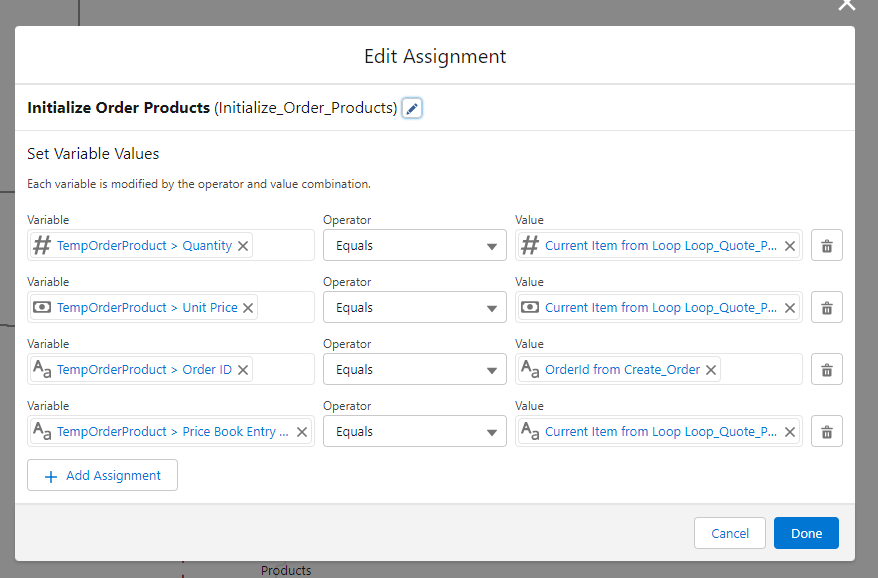
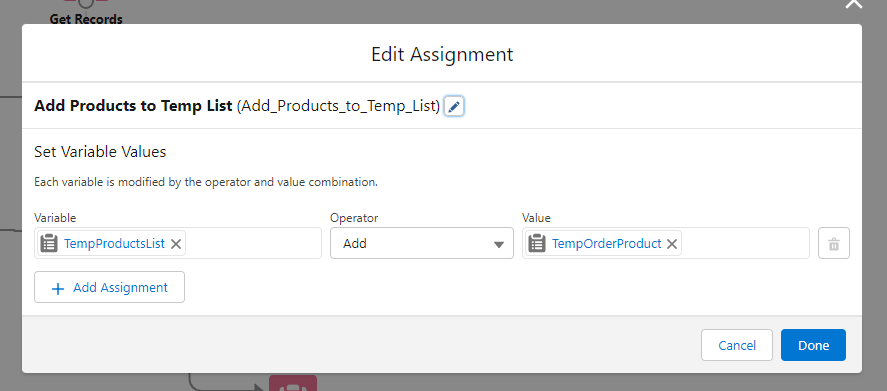
After the last item, we will create our order products
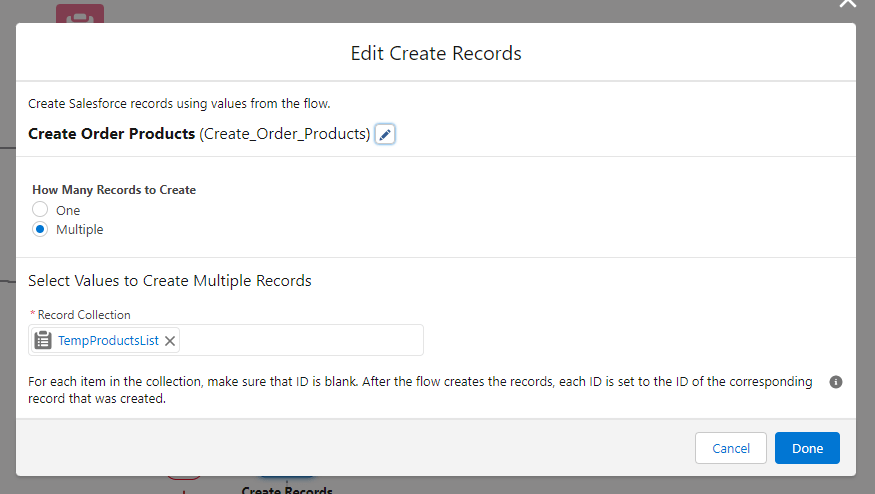
And to finish our screenflow, we need a message letting the user know that the quote has been succesfully converted to an order:
And that is it. You have built a screenflow that converts a quote to an order.
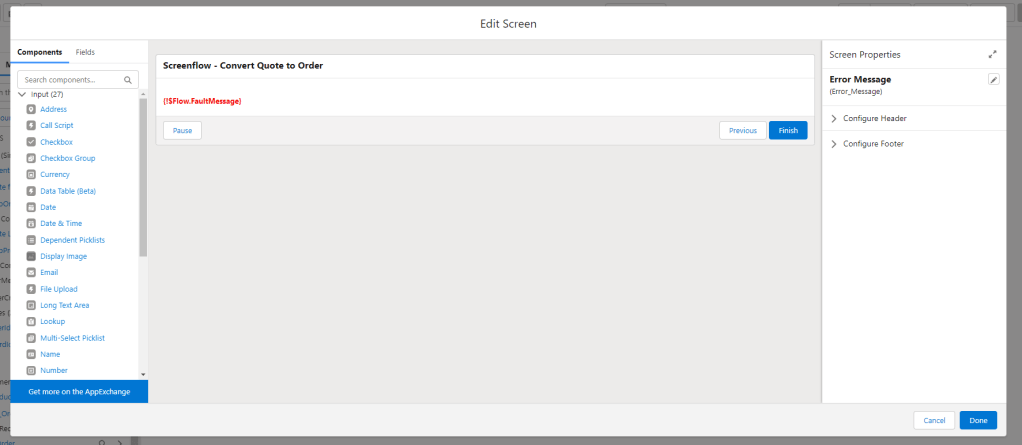
Flow’s best practices asks us to always add a fault path, so we did that at the end to let the user know if an error occurs.
We have our flow active and running, but how can we see it working?
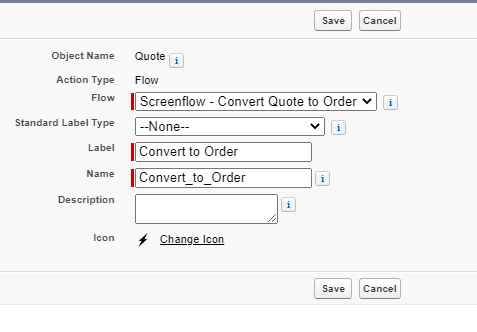
We need to add a quick action in the Quote. So we can navigate to Setup - Object Manager - Quote - Buttons, Links and Actions
Here, click on Create New Quick Action and add our new Flow
Go to your page layout and add the Quick Action to the Quote Layout

And that’s all!
Go to your quote and test it out!
 Salesforce World