This blog post is related to the agenda posted on my previous post and relates to all the information gathered from your client during the discovery meetings.
The first thing we need to do is install our Account Engagement Instance. You can follow this guide to set everything up. Once we have our app ready, we can start with the first training session.
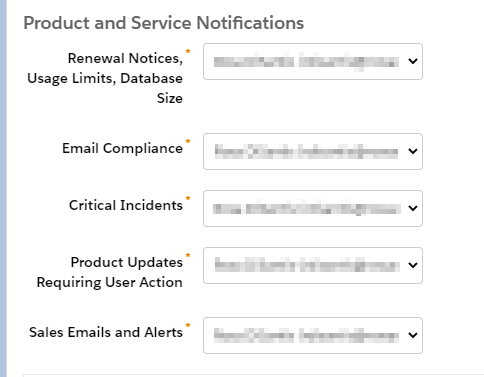
Set up Product and Service Notification Contacts
During the discovery meetings you can ask who from the client’s side is going to be the point of contact for the different types of notification that Account Engagement sends.
Account Engagement send different types of product and service notifications. You can designate a different point of contact for each notification in the Product and Service Notifications table in your business unit settings.
- Go to your Account Engagement Settings
- Edit the Account Information
- Scroll down to the Product and Service Notifications section
Define Account Engagement limits and compare that to prospect count in Salesforce
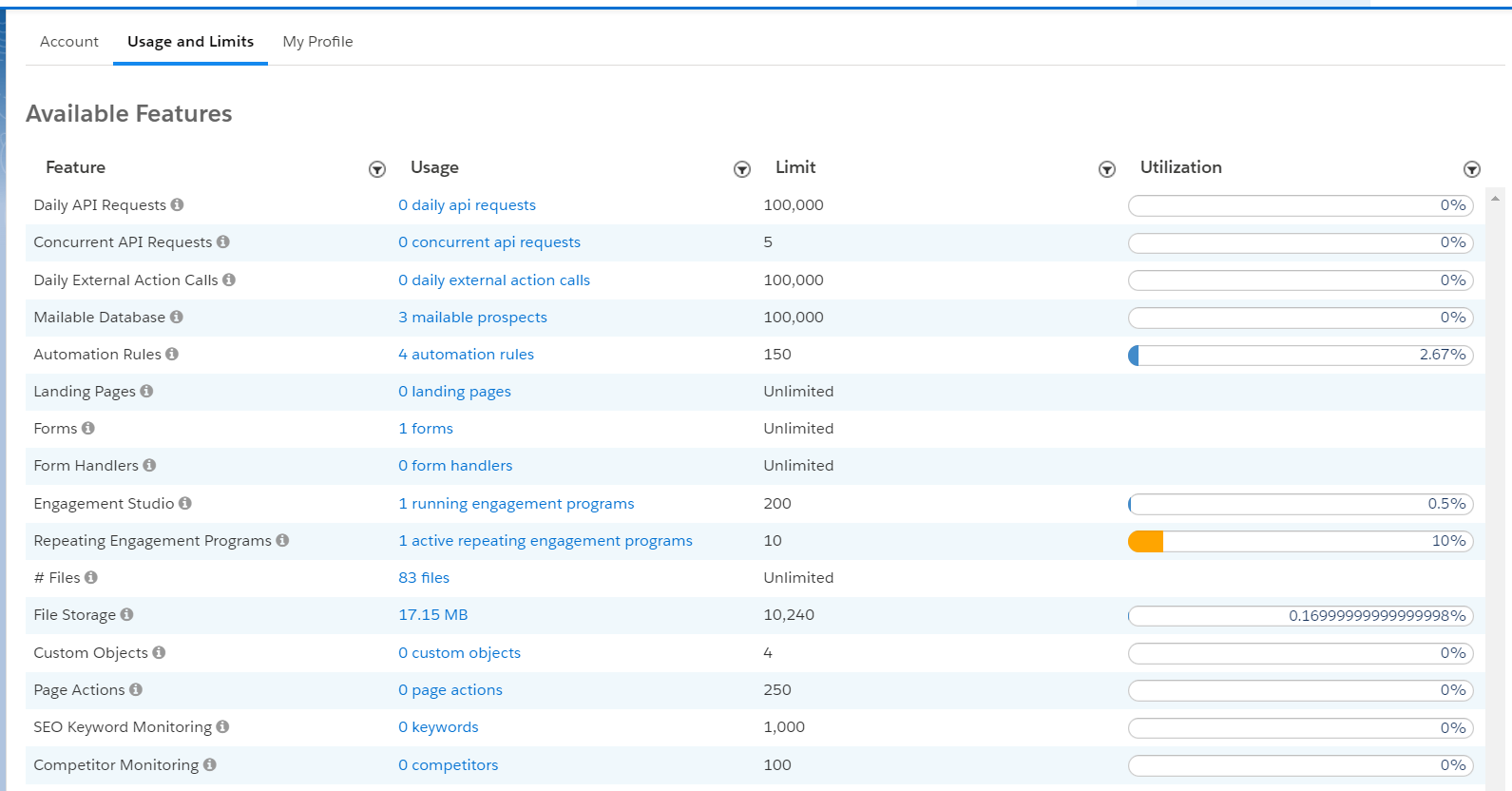
Depending on the type of Account Engagement license gotten, the limits might differ. It’s important you notify your client of these limits and how it can affect any future email marketing.
Usage and Limits can be found here:
- Go to Account Engagement Settings
- Click on the Usage and Limits Tab
Here’s a great article that outlines the differences between Account Engagement editions: https://www.salesforceben.com/the-drip/pardot-editions-features-pricing-account-engagement/
Configure the Connector
When you first install Account Engagement, the connector gets created in Paused Status. This is done so you can make any updates to the configuration (create new custom fields, assign correct permissions, etc) before starting the connector and syncing.
The connector can be found under Account Engagement Settings / Connectors

You can edit any connector options using the gear under actions
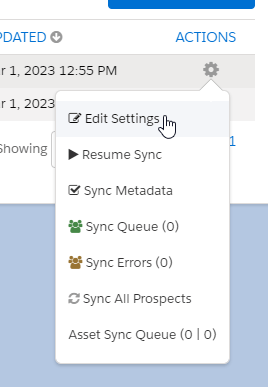
Here, you have three tabs (or more, depending on your Account Engagement Edition). The first tab is the one we are interested in for this training – Connector Settings
Here are some of the options and what they mean:
| SETTING | DESCRIPTION |
|---|---|
| Automatically create prospects in Pardot if they’re created as a Lead or Contact in Salesforce | A prospect is created each time a lead or contact with an email address is created, as long as the record includes an email address that isn’t already associated with a prospect. An email address is required on the lead or contact record to sync. |
| Exclude Salesforce Partner and Customer Portal users from Prospect assignment | Doesn’t list Salesforce Partner and Customer Portal users in the CRM Username dropdown in Account Engagement user records. |
| If records don’t have a CRM ID to match when syncing, use email address to match | Lets the connector use email address as a secondary prospect match criteria. The connector attempts to match records by CRM ID first, but uses an email address when no CRM ID is available. |
| Connect to a Salesforce sandbox account | Connect to a Salesforce sandbox instead of a production org. |
| Sync emails with the CRM | Logs an activity for every email sent to a prospect. This setting isn’t retroactive, and you can’t selectively sync emails. Email syncing uses Salesforce storage space. All emails are synced, which can quickly fill up activity views. Emails are truncated at 32,000 characters. |
| Sync plugin emails with the CRM | Logs an activity for every email sent to a prospect via an Account Engagement email plug-in. The email activity recorded in Salesforce is attributed to the connector user, not the user who sent the email. This setting isn’t retroactive, and you can’t selectively sync emails. Email syncing uses Salesforce storage space. All emails are synced, which can quickly fill up activity views. Emails are truncated at 32,000 characters. |
| Enable Salesforce emails for task creation | Lets Salesforce send a notification email to your user when a task is created. |
| Enable Salesforce emails for active assignment rules | Lets Salesforce send a notification email to your user when active assignment rules run. These emails are sent from Salesforce. If you don’t specify an email template during assignment rule setup in Salesforce, the emails aren’t sent. |
| Send Pardot notification emails when a merge is synced down from Salesforce | Sends a notification email to your connector user when a lead or contact record is merged in Salesforce and syncs to Account Engagement. Your connector user must be an Account Engagement user to receive these notifications. When a user manually merges prospects, the initiating user receives a merge notification email. |
 Salesforce World