Following our trainings, we continue with one of the most sought after tools that Account Engagement has: Lead Grading and Lead Scoring.
Scoring
A score indicates how interested your prospect is in your product or service. Scores are numbers assigned based on implicit actions: downloads, email clicks, email opens, page views, form submissions, etc.
Scoring can be customized in different ways: manually by editing a prospect record, manually by modifying the baseline scoring rules, by using completion actions, by using automation rules, during imports or on engagement studio programs.
Manually Editing a Prospect Record
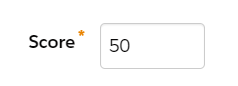
- Go to a prospect’s record and click Edit

- Change the score
Manually modifying the baseline scoring rules
- Go to Account Engagement Settings
- On the left, expand Automation Settings
- Click on Scoring
- Click on Edit Scoring Rules
Completion Actions
- Some marketing assets have completion actions, e.g. forms
- Go to Content/Forms
- Edit any form and go to step 4
- You can adjust a prospect score using completion actions

Automation Rules
- Go to Automations/Automation Rules
- Select the criteria you want your prospects to match
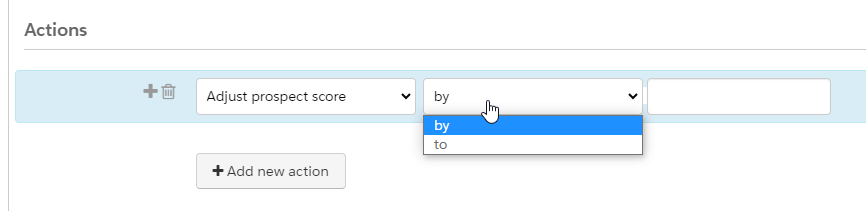
- Under actions, adjust prospect score to a specific score it by adding/decreasing score
During Import
- Go to Account Engagement Settings/Imports
- Select the file you want to import
- In Step 4, you can add any score to your new prospects
Engagement Studio Programs
- Go to Automations/Engagement Studio
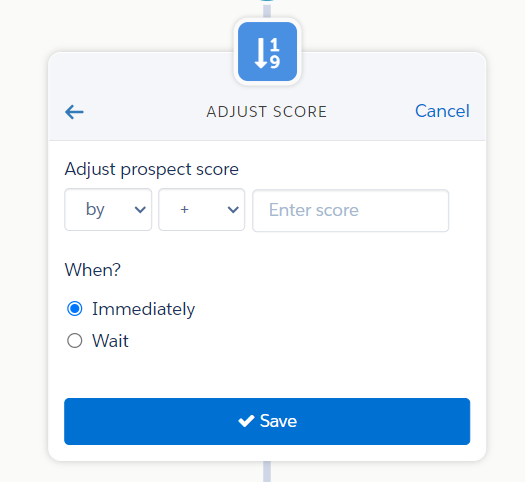
- Add Action to update score
Grading
Grades indicate how your company should be in a prospect. This is calculated based on explicit factors, this means, information the prospects has given you, e.g. job title, company size, industry, etc. Grading is based on a scale of F to A+ and each prospect begins with letter D.
- Identify Criteria (Company Size, Industry, Job title, etc)
- Weigh Criteria (Adjusted in 1/3 increments)
- Define Criteria Values (e.g. Company size > 100 employees, Industry = Tech)
To set up grading, the first thing you need to do is set up a profile or edit the default one:
- Go to Prospects/Segmentation/Profiles
- Edit Profile
- Edit Criteria by field and grade adjustment
- Save
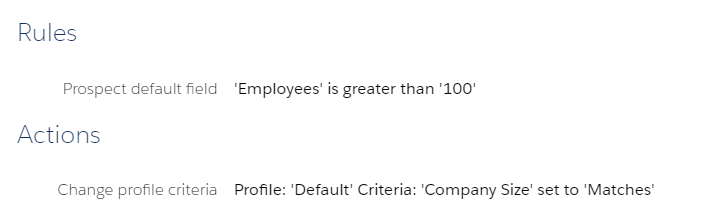
In order to get grades on your prospects, you need to set up automation rules per each grading criteria:
- Automations/Automation Rules
- Add Automation Rule
There you have it, you have successfully set up grading and scoring. Now, your prospect records can look something like this: 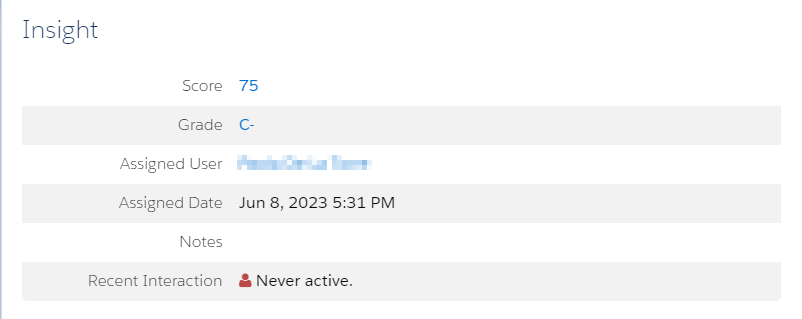
 Salesforce World