I recently received a request to build an Account Engagement (Pardot) form that could support multiple languages, track various campaigns, and capture UTM parameters—all without relying on a language dropdown.
My research led me to a fantastic blog post by Adam Erstelle on the Spot, which served as a great foundation. However, I had to adapt it to meet my client’s specific requirements—mainly removing the language selector and ensuring full support for campaign and UTM tracking.
After brushing up on some JavaScript skills, I was able to put together a solution that worked seamlessly. Here’s how I approached it:
Building a Multilingual Account Engagement Form with UTM Tracking
Step 1: Create a New Form in Account Engagement
1. In Salesforce Account Engagement, navigate to Content > Forms, then click New.
2. Fill in the required details like Name, Folder, Campaign, and Layout Template.
3. In Step 2, add all the fields you want to capture—such as First Name, Last Name, Email, and a hidden URL field to capture UTM parameters. 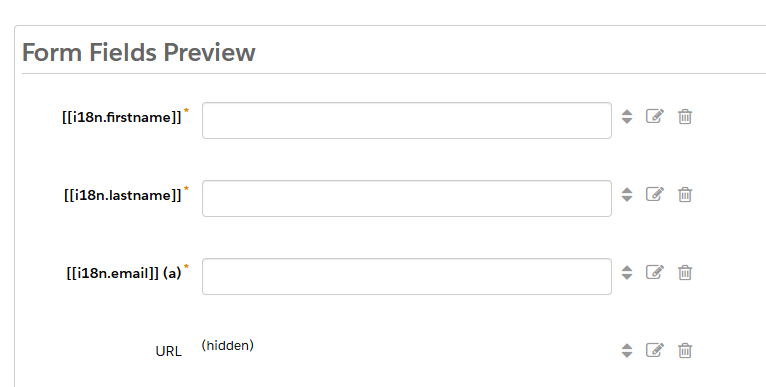
🔎 Note: For multilingual support, make sure to follow the label format suggested in Adam Erstelle’s blog post, as it allows dynamic replacement via script.
For the hidden URL field, assign the CSS Class:
get-page-url
Step 2: Capture the URL with JavaScript
Proceed to the Look and Feel step and insert this script to automatically populate the hidden URL field:
<script>
  document.querySelector(".get-page-url input").value = window.location.href;
</script>
Step 3: Add the Translation Script to the Layout Template
Next, edit your Layout Template and insert the following script to handle multilingual labels dynamically based on the visitor’s browser language, keep in mind this code currently handles more fields than the ones that were added for this demo:
https://cdn.jsdelivr.net/npm/handlebars@latest/dist/handlebars.js
<script>
const languages = {
  lang: {
    en: 'English',
    fr: 'Français',
    es: 'Español'
  }
};

const translations = {
  en: {
    i18n: {
      firstname: "First Name",
      lastname: "Last Name",
      email: "Email",
      industry: "Industry",
      hospitality: "Hospitality",
      tech: "Tech",
      submit: "Save now",
      language: "Language",
      formErrors: "Please correct the errors below:",
      fieldError: "This field is required",
      thankyou: "Thanks for submitting!",
      notYou: "Not you?",
      notYouClickHere: "Click here"
    }
  },
  fr: {
    i18n: {
      firstname: "Prénom",
      lastname: "Nom de famille",
      company: "Société",
      email: "Email",
      industry: "Secteur d'activité",
      hospitality: "Hospitalité",
      tech: "Technologie",
      submit: "Enregistrer",
      language: "Langue",
      formErrors: "Corrigez les erreurs ci-dessous:",
      fieldError: "Ce champ est obligatoire",
      thankyou: "Merci d'avoir soumis",
      notYou: "Pas vous?",
      notYouClickHere: "Cliquez ici"
    }
  },
  es: {
    i18n: {
      firstname: "Primer nombre",
      lastname: "Apellido",
      company: "Compañía",
      email: "Correo electrónico",
      industry: "Industria",
      hospitality: "Hospitalidad",
      tech: "Tecnología",
      submit: "Guardar ahora",
      language: "Idioma",
      formErrors: "Por favor corrija los siguientes errores:",
      fieldError: "Este campo es obligatorio",
      thankyou: "Gracias por enviar",
      notYou: "¿No eres tú?",
      notYouClickHere: "Haz clic aquí"
    }
  }
};

function i18nForm() {
  document.addEventListener("DOMContentLoaded", function () {
    const brO = '{', brC = '}';

    // Replace inline error messages
    const formErrors = document.querySelector('#pardot-form p.errors');
    if (formErrors) {
      formErrors.innerHTML = `[[i18n.formErrors]]`;
      [...document.querySelectorAll('#pardot-form p.error.no-label')].forEach(node => {
        node.innerHTML = `[[i18n.fieldError]]`;
      });
    }

    // Replace "Not you?" message if present
    const notYou = document.querySelector('.email span.description');
    if (notYou) {
      const origHtml = notYou.innerHTML;
      notYou.innerHTML = origHtml
        .replace('Not', '[[i18n.notYou]]')
        .replace('Click Here', '[[i18n.notYouClickHere]]');
    }

    // Get form HTML and convert [[ ]] to Handlebars {{ }}
    const formEl = document.querySelector('#pardot-form');
    const originalHtml = formEl.innerHTML
      .replace(/\[\[/g, `${brO + brO}`)
      .replace(/\]\]/g, `${brC + brC}`);

    const processTemplate = Handlebars.compile(originalHtml);

    // Get browser language (2-letter code) and fallback to 'en'
    let browserLang = navigator.language.substr(0, 2);
    if (!(browserLang in translations)) {
      browserLang = 'en';
    }

    // Apply translation
    const translatedHtml = processTemplate({ ...translations[browserLang], ...languages });
    formEl.innerHTML = translatedHtml;
  });
}

i18nForm();
</script>
This setup will dynamically translate form labels based on the user’s browser language and capture the full page URL for tracking purposes—including any UTM parameters.
Step 4: Use Automation Rules to Assign Prospects to Campaigns Based on UTM Parameters
The final piece of the puzzle was assigning prospects to specific campaigns based on their UTM parameters. For this, I leveraged Automation Rules in Account Engagement.
Here’s how to set it up:
- Navigate to Automations > Automation Rules.
- Click + Add Automation Rule to create a new rule.
- Set a clear name for your rule—for example:
Assign to Pardot 2 Campaign – UTM Test. - Under Rule, define your criteria. If you’re using a custom field to capture the URL (with UTM parameters), you’ll want to filter like this:
Prospect Custom Field > URL > contains > utmtest5. Under Action, select:
Change prospect campaign > Pardot 2 Campaign6. Save and activate your rule.
Repeat this process for each UTM value and campaign you want to support.
With this setup, you’re now automatically segmenting and routing prospects based on how they arrived at your form—while also providing a smooth, multilingual experience.
 Salesforce World